Blogs
Performance Optimisation from First Principles
Understanding frontend performance optimization from the ground up - learn how browsers work and optimize your code accordingly.
Performance · Frontend · JavaScript · Browser — Pratik Rai ·
Understand how browsers render pages through the Critical Rendering Path. Learn to optimize DOM, CSSOM, render tree construction, and reduce time to first paint for faster websites.
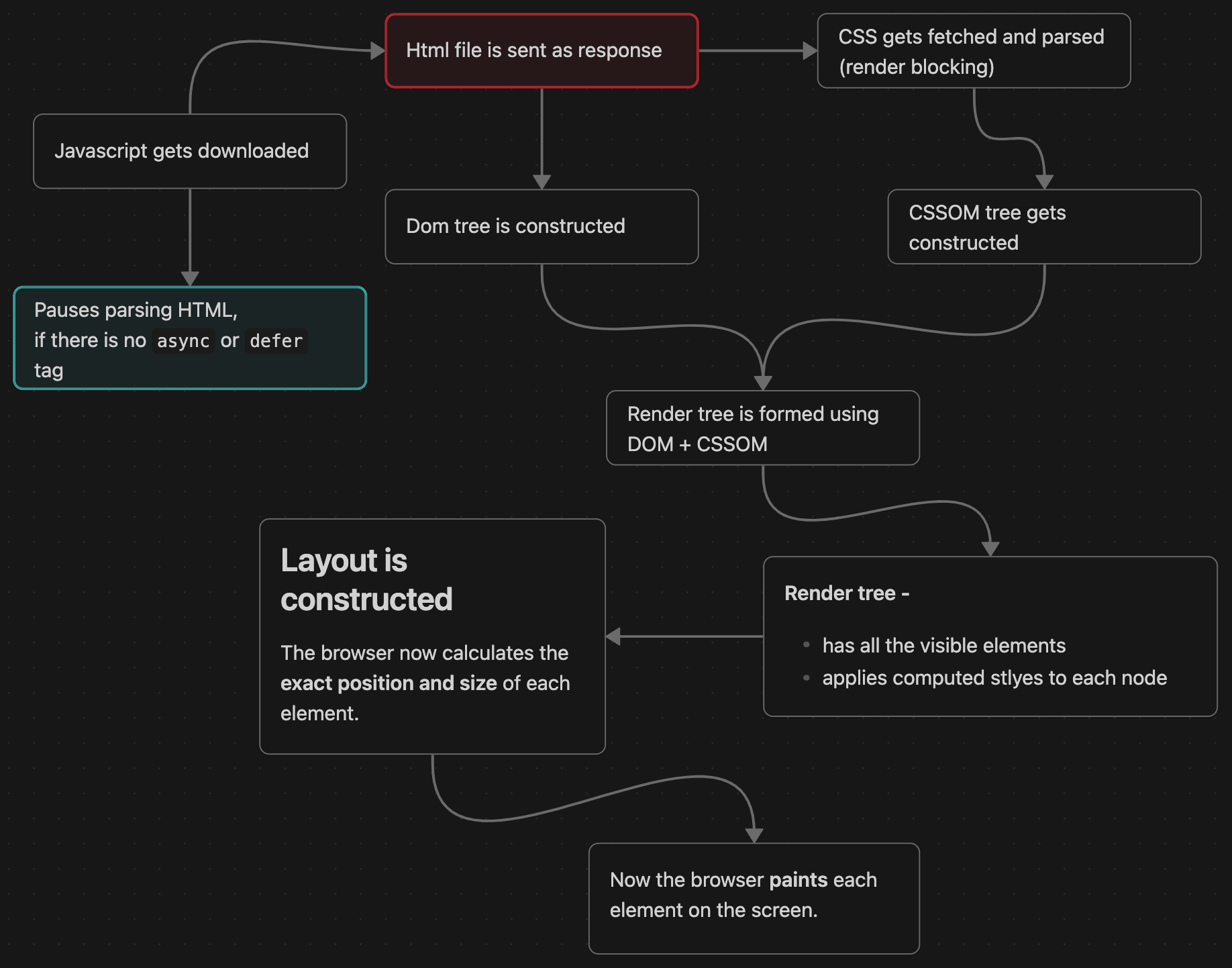
When you load a web page, your browser performs a sophisticated sequence of operations to transform HTML, CSS, and JavaScript into the interactive experience you see on screen. This process is called the Critical Rendering Path, and understanding it is essential for building fast, responsive websites. Learn more from Google's Critical Rendering Path documentation.
The Critical Rendering Path (CRP) is the sequence of steps browsers take to convert HTML, CSS, and JavaScript into pixels on the screen. Understanding this process is essential for optimizing web performance and delivering faster, more responsive user experiences.
The browser needs to accomplish three fundamental tasks:
These tasks unfold across six distinct stages.
When HTML arrives, the browser parses it into a tree structure called the Document Object Model (DOM). Each HTML element becomes a node, preserving parent-child relationships.
This parsing happens incrementally, the browser doesn't wait for the entire HTML file. As soon as it receives enough bytes to identify a complete tag, it creates a node. However, when the browser encounters a <script> tag, it must pause parsing entirely. JavaScript can modify the DOM using methods like document.write, so the browser can't safely continue until the script executes.
CSS follows a similar parsing process, creating the CSS Object Model (CSSOM). This tree represents styling rules and their cascading relationships.
Unlike HTML parsing, CSS parsing blocks rendering. The browser won't display anything until the CSSOM is complete because CSS rules can override each other—the browser needs all the CSS to know which rules actually apply. This is why large stylesheets can leave users staring at blank screens even after HTML has arrived.
Once both DOM and CSSOM exist, the browser combines them into the Render Tree. This new structure contains only visible elements with their computed styles.
The Render Tree excludes <script> tags, <meta> tags, and elements with display: none. However, elements with visibility: hidden are included because they still occupy space. The browser walks through each visible node, looking up applicable CSS rules and computing final values including inherited properties.
Layout is where the browser calculates exact positions and sizes. Starting at the root, it recursively computes geometry for every element, considering viewport size, the box model, and how elements affect each other's positions.
Example:
CSSstyles.css1.container {
2  width: 100%;
3  max-width: 1200px;
4  margin: 0 auto;
5}
6
7.sidebar {
8  width: 25%;
9  float: left;
10}
11
12.content {
13  width: 75%;
14  float: left;
15}
The browser calculates:
Performance Impact: Layout is computationally expensive. Accessing certain properties in JavaScript (like offsetHeight, clientWidth) can trigger forced synchronous layouts, causing performance bottlenecks.
After layout, the browser converts the Render Tree into actual pixels through painting. This creates layers and fills in text, colors, images, borders, shadows, and other visual properties. It creates layers for efficient updates, elements with certain properties like transform, opacity, or position: fixed often get their own layers.
Paint costs vary by different CSS property.
Since some properties are expensive than others, they increase the time taken to paint the page.
The final stage combines all painted layers into the image you see. Modern browsers perform compositing on the GPU, enabling smooth scrolling and animations.
This is crucial for performance: properties like transform and opacity can be animated purely on the compositor without repainting or layout recalculation. Properties like width require layout. Properties like background-color require repainting.
CSSstyles.css1/* Compositor-only (fast) */
2.smooth-animation {
3  transform: translateX(100px);
4  opacity: 0.5;
5}
6
7/* Triggers layout (slower) */
8.janky-animation {
9  width: 500px;
10}
javaScript disrupts this flow. When the browser encounters a <script> tag, it stops DOM construction, downloads the JavaScript if external, executes it, then resumes parsing.
This blocking happens because JavaScript can modify everything: the DOM, styles, even document structure. The browser can't continue safely without executing scripts first.
HTML provides two attributes that changes this blocking behavior:
Async scripts download in parallel and execute immediately when ready, pausing parsing only during execution:
HTMLindex.html1<script src="analytics.js" async></script>
Defer scripts download in parallel but wait to execute until HTML parsing completes. Multiple deferred scripts execute in order:
HTMLindex.html1<script src="app.js" defer></script>
Use async for scripts that don't depend on DOM or other scripts (like analytics). Use defer for scripts that need the complete DOM or have dependencies.
Understanding how the Critical Rendering Path directly impacts Google's Core Web Vitals:
Largest Contentful Paint (LCP):
measures when the largest content element appears. Slow CSS loading, parser-blocking JavaScript, or complex layouts all hurt LCP.
First Input Delay (FID):
measures responsiveness to user interactions. Long JavaScript tasks block the main thread, preventing the browser from responding to clicks.
Cumulative Layout Shift (CLS):
measures visual stability. Images without dimensions cause layout shifts when they load. Late-loading fonts with different metrics than fallbacks shift text when applied.
Optimization revolves around three principles: minimize critical resources, minimize their size, and shorten the critical path.
Instead of blocking on external stylesheets, inline styles for above-the-fold content directly in HTML:
HTMLindex.html1<head>
2  <style>
3    /* Critical styles for immediate render */
4    body { margin: 0; font: 16px/1.6 sans-serif; }
5    .header { background: #333; color: white; padding: 1rem; }
6  </style>
7
8  <!-- Full CSS loads asynchronously -->
9  <link rel="preload" href="styles.css" as="style" onload="this.rel='stylesheet'">
10</head>
Tell the browser about resources it will need using resource hints:
HTMLindex.html1<!-- Resolve DNS early -->
2<link rel="dns-prefetch" href="https://fonts.googleapis.com">
3
4<!-- Establish full connection -->
5<link rel="preconnect" href="https://api.example.com">
6
7<!-- Download critical resources early -->
8<link rel="preload" href="hero.jpg" as="image">
Specify dimensions to prevent layout shifts:
HTMLindex.html1<img src="hero.jpg" alt="Hero" width="1200" height="600">
2
3<!-- Or use aspect-ratio -->
4<img src="hero.jpg" alt="Hero" style="aspect-ratio: 2/1; width: 100%;">
Use responsive images with srcset to serve appropriate sizes:
HTMLindex.html1<img
2  srcset="small.jpg 400w, medium.jpg 800w, large.jpg 1200w"
3  sizes="(max-width: 700px) 100vw, 700px"
4  src="medium.jpg"
5  alt="Hero"
6>
Load comments, social widgets, and other non-essential content only when needed:
JSfile.javascript1const observer = new IntersectionObserver((entries) => {
2  if (entries[0].isIntersecting) {
3    import('./comments.js').then(module => module.init());
4    observer.disconnect();
5  }
6});
7observer.observe(document.querySelector('#comments'));
Use font-display to control loading behavior:
CSSstyles.css1@font-face {
2  font-family: 'CustomFont';
3  src: url('font.woff2') format('woff2');
4  font-display: swap; /* Show fallback immediately */
5}
Use the Performance API to understand your critical path:
JSfile.javascript1// Paint timing
2performance.getEntriesByType('paint').forEach(entry => {
3  console.log(`${entry.name}: ${entry.startTime}ms`);
4});
5
6// Navigation timing
7const perfData = performance.getEntriesByType('navigation')[0];
8console.log('DOM processing:', perfData.domComplete - perfData.domLoading, 'ms');
Chrome DevTools Performance panel visualizes when each stage occurs, showing parsing, style calculation, layout, paint, and composite operations.
Over-optimizing prematurely: Don't add complexity before you have measured problems using tools like chrome devtools. Inlining everything, making every script async, or adding will-change everywhere creates more issues than it solves.
Ignoring mobile networks: Test on throttled connections. Critical path optimization matters the most on slow networks where every round trip is expensive.
Loading everything upfront: Not everything requires immediate loading. Use intersection observers and dynamic imports for non-critical features.
Neglecting third-party scripts: Analytics, ads, and social widgets often destroy performance. Always load them asynchronously and monitor their impact.
Missing font strategy: Uncontrolled font loading causes invisible text or layout shifts. Use font-display: swap or font-display: optional to manage the experience.
Here's an optimized page structure:
HTMLindex.html1<!DOCTYPE html>
2<html>
3<head>
4  <title>My Article</title>
5
6  <!-- Resource hints -->
7  <link rel="dns-prefetch" href="https://cdn.example.com">
8  <link rel="preload" href="hero.jpg" as="image">
9
10  <!-- Critical CSS inline -->
11  <style>
12    body { margin: 0; font: 18px/1.7 sans-serif; color: #2d3748; }
13    header { background: #667eea; color: white; padding: 1.5rem; }
14    article { max-width: 700px; margin: 2rem auto; padding: 0 1rem; }
15    article img { width: 100%; height: auto; }
16  </style>
17
18  <!-- Full CSS async -->
19  <link rel="preload" href="styles.css" as="style" onload="this.rel='stylesheet'">
20
21  <!-- Analytics async -->
22  <script src="analytics.js" async></script>
23</head>
24<body>
25  <header>
26    <h1>My Blog</h1>
27  </header>
28
29  <article>
30    <h2>Article Title</h2>
31    <img src="hero.jpg" alt="Hero" width="800" height="450">
32    <p>Article content...</p>
33  </article>
34
35  <!-- Main app deferred -->
36  <script src="app.js" defer></script>
37</body>
38</html>
HTML → DOM → CSSOM → Render Tree → Layout → Paint → Composite
Every performance issue maps to one of these stages.
Optimizing the Critical Rendering Path requires understanding how browsers process resources and render pages. The key strategies are:
Goal: Understand the critical rendering path and how to optimize it. This will help you to build faster and more responsive websites.
Continue learning with these related challenges
Understanding frontend performance optimization from the ground up - learn how browsers work and optimize your code accordingly.
Performance · Frontend · JavaScript · Browser — Pratik Rai ·
A practical guide to crawling, indexing, meta tags, semantics, and Core Web Vitals so your pages rank and stay fast.
SEO · Web Performance · Frontend — Pratik Rai ·
Learn how I cut CSS bundle size by 85% and improved page load times by 50% using dynamic imports and automatic code splitting in Next.js—a simple pattern with massive performance impact.
Next.js · React · Performance · CSS — Pratik Rai ·
Understanding frontend performance optimization from the ground up - learn how browsers work and optimize your code accordingly.
Performance · Frontend · JavaScript
Pratik Rai ·
A practical guide to crawling, indexing, meta tags, semantics, and Core Web Vitals so your pages rank and stay fast.
SEO · Web Performance · Frontend
Pratik Rai ·
Learn how I cut CSS bundle size by 85% and improved page load times by 50% using dynamic imports and automatic code splitting in Next.js—a simple pattern with massive performance impact.
Next.js · React · Performance
Pratik Rai ·